Introduction
You’ve been using Docker for years. You build images, run containers, spin up Redis and Postgres for local development. But have you ever wondered what actually happens when you type docker run? This guide peels back the layers.
The Biggest Misconception
Docker did not invent containers. When someone says “Docker container,” they’re actually conflating a company’s product with a Linux kernel feature. Containers are a Linux kernel feature. Docker is a company that packaged and popularized that feature.
Why “Docker” Became Synonymous with “Containers”
This is historical, not technical. Docker:
- Arrived at the right time (2013, cloud adoption exploding)
- Solved a real developer pain (“works on my machine”)
- Made containers usable (simple CLI, Dockerfile, image registries)
- Built strong branding
So the word stuck. Just like “Xerox” for photocopy and “Google” for search.
Series Overview
Key Takeaways
- Containers = Linux kernel feature (namespaces + cgroups + filesystem isolation)
- Docker = User experience layer that made containers accessible
- OCI standards ensure portability across all container tools
- Multiple layers: CLI → dockerd → containerd → runc → container
- Production uses containerd + runc on all major clouds
Mental Model
"Container" = Linux process with isolation (namespaces + cgroups)
"Docker"    = Company + tooling that made containers accessible
"OCI"       = Standards that ensure interoperability
"Runtime"   = Either the process spawner (runc) or lifecycle manager (containerd)
Understanding Docker Desktop
Important clarification: You don’t need Docker Desktop to run containers. On Linux, you can install Docker Engine directly. However, Docker Desktop is the most popular and widely-used containerization tool globally. It’s an all-in-one packaged solution that provides a seamless experience—GUI, CLI and automatic updates—making it the best starting point for beginners learning containers.
Why Docker Desktop Needs a VM (Why Linux Doesn’t)
The fundamental truth: Containers are a Linux kernel feature. They rely on kernel primitives like namespaces, cgroups, and capabilities that simply don’t exist in macOS or Windows kernels.
This is the most important mental shift.
A container is:
- Not a VM
- Not special
- Not persistent infrastructure
It is a regular Linux process with:
- isolated namespaces
- restricted resources
- a different root filesystem
That’s why:
- Containers start in milliseconds
pson the host can see them- Crashing the app kills the container
macOS and Windows (Laptops)
On your Mac or Windows laptop, Docker Desktop must run a lightweight Linux VM using a hypervisor:
- macOS: Uses Apple’s Hypervisor.framework (built into macOS)
- Windows: Uses Hyper-V or WSL 2 (Windows Subsystem for Linux)
This VM is hidden from you—you don’t see it in your applications list—but it’s there, consuming memory and CPU even when idle. Every container you run actually executes inside this Linux VM, not directly on your host OS.
Why this matters:
- Docker Desktop on macOS/Windows has two layers of resource allocation: first you allocate resources to the VM, then containers share those VM resources
- The VM itself consumes 1-2 GB baseline memory before any containers run
- You’re running a full Linux kernel in the background
Pure Linux (Laptops/Servers)
On a native Linux system, there’s no VM needed:
- Docker Engine runs directly on your Linux kernel
- Containers use the same kernel as your host system
- No hypervisor overhead, no hidden VM
- Direct access to kernel features (namespaces, cgroups)
The efficiency gain:
- No baseline memory for a VM (save 1-2 GB)
- No CPU overhead from virtualization
- Containers start faster (no VM layer)
- True “bare metal” container performance
This is why production environments run Linux—you get the full performance benefits of containers without the VM overhead.
Architecture Comparison
macOS/Windows with Docker Desktop:
┌─────────────────────────────────────────────────────────────────┐
│  macOS/Windows Host                                             │
│  ┌───────────────────────────────────────────────────────────┐  │
│  │  docker CLI (native binary)                               │  │
│  └─────────────────────────┬─────────────────────────────────┘  │
│                            │ socket                             │
│                            ▼                                    │
│  ┌───────────────────────────────────────────────────────────┐  │
│  │  Hypervisor (Hypervisor.framework / Hyper-V / WSL2)      │  │
│  │  ┌─────────────────────────────────────────────────────┐  │  │
│  │  │  Lightweight Linux VM                               │  │  │
│  │  │  ┌───────────────────────────────────────────────┐  │  │  │
│  │  │  │  dockerd → containerd → runc                  │  │  │  │
│  │  │  │                └── your containers            │  │  │  │
│  │  │  └───────────────────────────────────────────────┘  │  │  │
│  │  └─────────────────────────────────────────────────────┘  │  │
│  └───────────────────────────────────────────────────────────┘  │
└─────────────────────────────────────────────────────────────────┘
Native Linux:
┌─────────────────────────────────────────┐
│  Linux Host                             │
│  ┌───────────────────────────────────┐  │
│  │  docker CLI                       │  │
│  │       ↓                           │  │
│  │  dockerd → containerd → runc      │  │
│  │                └── containers     │  │
│  │                (native processes) │  │
│  └───────────────────────────────────┘  │
│  ✅ No VM overhead                      │
│  ✅ Native performance                  │
└─────────────────────────────────────────┘
macOS Client vs Daemon Split
Docker Desktop on macOS only installs the client tools (docker, docker-compose) as native binaries. The daemons (dockerd, containerd, runc) are Linux executables that live inside the hidden Docker Desktop Linux VM, so you’ll never find them running as macOS processes.
Exploring the container runtimes
Shell into the VM with:
docker run -it --rm --privileged --pid=host justincormack/nsenter1Once inside the container shell, run
runc --versionto inspect the container runtime; it prints something like:runc version 1.3.4 commit: v1.3.4-0-gd6d73eb8 spec: 1.2.1 go: go1.24.11 libseccomp: 2.5.4What that command actually does
--privilegedremoves most isolation and gives access to host devices (here the linux VM), mounts, and capabilities.--pid=hostshares the host PID namespace so you can see every Linux process inside the VM.justincormack/nsenter1is a helper image created by a Docker engineer specifically to enter Docker Desktop’s VM. Result: you get access to the Linux VM rather than inside an ordinary sandboxed container.
Back on macOS also, you can confirm which runtime the daemon registered via
docker info | grep -i runtime, anddocker inspect <container-id> --format '{{.HostConfig.Runtime}}'reportsrunc, so you see the same runtime name without needing root privileges.
Quick Comparison
| Command | Where it runs | What you see on macOS |
|---|---|---|
docker | macOS (client) | Works |
docker-compose | macOS (client) | Works |
dockerd | Inside the Linux VM | Not found |
containerd | Inside the Linux VM | Not found |
runc | Inside the Linux VM | Not found |
My Setup: Docker Desktop on Mac Mini
I’m running Docker Desktop on an M1 Mac Mini with the following resource allocation. I’ve allocated the following resources to Docker Desktop:
- 5 CPU cores out of my Mac Mini’s available cores
- ~10 GB memory (9.7 GB to be precise)
- 3 GB swap space
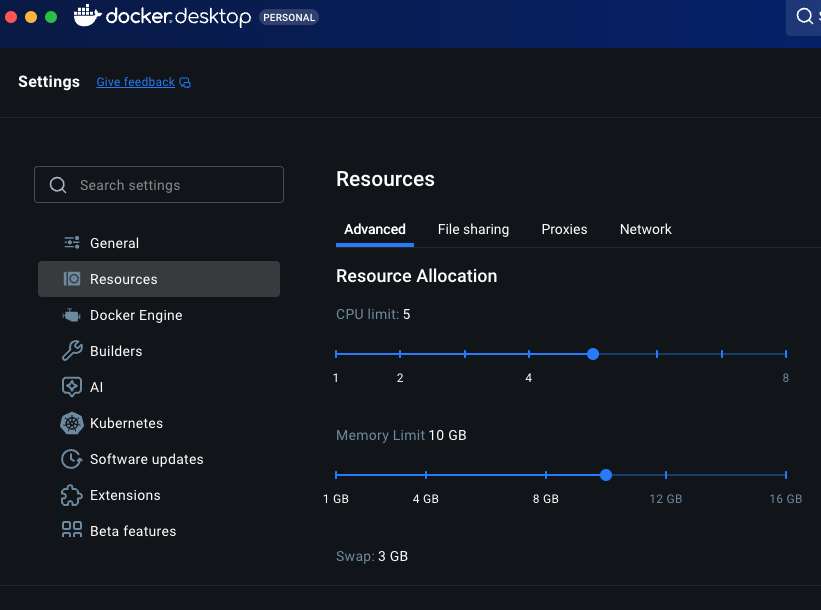
This allocation means that all my containers combined can use up to these limits. But here’s what most developers don’t realize: Docker Desktop itself consumes resources even when no containers are running.
What’s Actually Running?
Let me show you what’s happening on my system right now using btop (a resource monitor for the terminal):
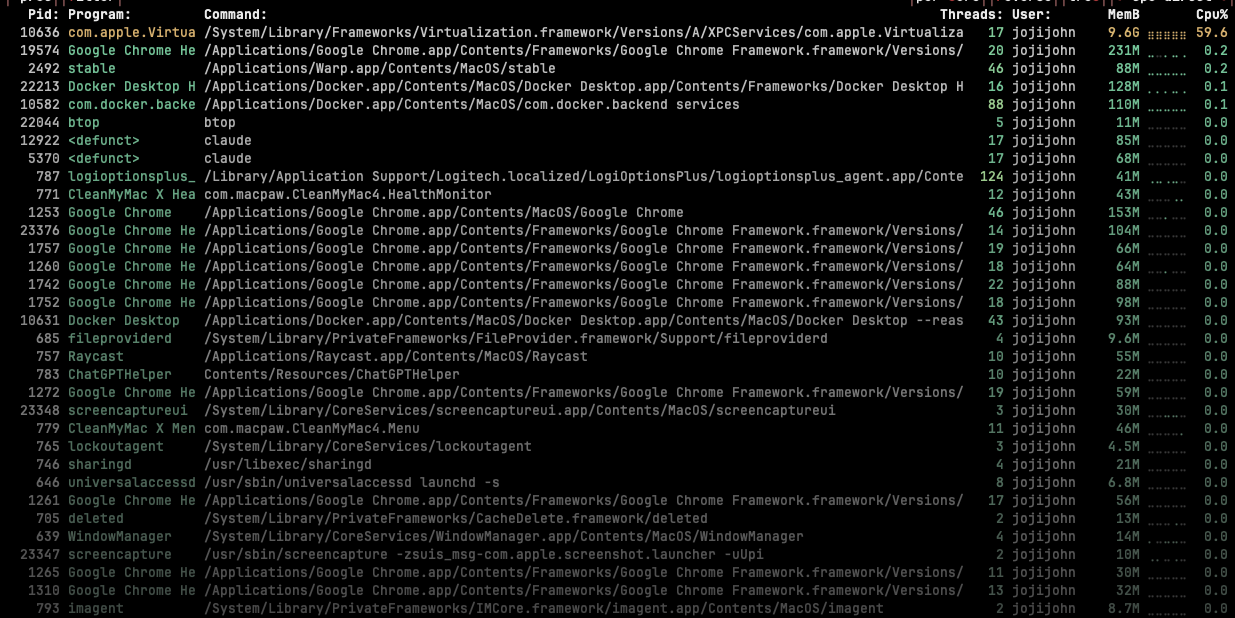
I have couple of containers running, Docker Desktop consumes resources for:
- Docker Desktop app - The GUI and management layer (~200-400 MB)
- dockerd - The Docker daemon (~100-200 MB)
- containerd - The container runtime (~50-100 MB)
- The Linux VM - The hidden virtual machine (~1-2 GB baseline)
On my Mac Mini, Docker Desktop uses approximately 1.5-2.5 GB of RAM running some small containers. On a machine with 16 GB RAM, that’s a significant chunk of resources!
The Critical Difference: Resource Limits
# Without limits - can consume all 5 CPUs and 9.7 GB memory
docker run -d --name my-redis1 redis

# With limits - restricted to 2 CPUs and 512 MB
docker run -d --name my-redis2 -m 512m --cpus=2 redis
Without limits, a single container can consume all resources allocated to my Docker Desktop (5 CPUs and 9.7 GB) during a traffic spike, starving other containers.
Note: This is generally fine for local development where you’re not simulating production traffic. These examples are primarily to understand Docker’s resource management internals and build good habits for production deployments.
The Magic Under the Hood: Linux cgroups
You might wonder: “How does Docker actually enforce these limits?” The answer is elegant—Docker leverages a Linux kernel feature called cgroups (control groups).
Remember, on my Mac Mini, Docker runs containers inside a hidden Linux VM. Inside that VM, the Linux kernel uses cgroups to enforce the limits I specify:
My docker run command on Mac:
  docker run -d --name my-redis2 -m 512m --cpus=2 redis

What happens inside the Linux VM:
  ├── Create cgroup for this container
  ├── Set memory.limit_in_bytes = 536870912 (512 MB)
  ├── Set cpu.cfs_quota_us = 200000 (2 CPUs)
  └── Launch container within this cgroup
What Happens When Limits Are Exceeded
- CPU: Throttled to the limit—container runs slower but continues
- Memory: OOM killed (exit code 137)—container crashes immediately
Memory limits are critical; CPU limits are forgiving.
Real-Time Monitoring with docker stats
# Watch all containers in real-time
docker stats

# Output example:
CONTAINER ID   NAME        CPU %     MEM USAGE / LIMIT     MEM %     NET I/O       BLOCK I/O   PIDS
8a75cdb95255   my-redis2   0.38%     10.34MiB / 512MiB     2.02%     872B / 126B   0B / 0B     6
e945fa9239d7   my-redis1   0.37%     10.85MiB / 9.704GiB   0.11%     998B / 126B   0B / 0B     6
This shows me:
- CPU % - What percentage of available CPU the container is using
- MEM USAGE / LIMIT - Current memory vs. the limit I set
- MEM % - Percentage of the limit being used
If I see a container consistently hitting 90%+ of its memory limit, I know I need to either:
- Increase the limit, or
- Investigate why it needs so much memory
Detailed Container Inspection
# Quick check without watching (good for scripts and automation)
docker stats --no-stream

# See the actual cgroup limits for a container
docker inspect my-redis1 --format='{{.HostConfig.Memory}}'
docker inspect my-redis2 --format='{{.HostConfig.Memory}}'
# Output: 2147483648 (2 GB in bytes)

docker inspect my-redis1 --format='{{.HostConfig.NanoCpus}}'
docker inspect my-redis2 --format='{{.HostConfig.NanoCpus}}'
# Output: 2000000000 (2 CPUs in nanosecond units)
Performance Considerations
File Sharing Overhead
When you mount local directories on macOS/Windows:
docker run -v /Users/you/code:/app nginx
The file path crosses multiple layers:
- macOS/Windows filesystem → 2. VM filesystem sharing (VirtioFS/gRPC-FUSE) → 3. Linux VM → 4. Container mount
This can be 2-10x slower than native Linux file I/O.
Workarounds:
# Use named volumes (data stays in VM - much faster)
docker run -v mydata:/app/data nginx

# Use :cached flag on macOS (trades consistency for speed)
docker run -v /Users/you/code:/app:cached nginx
Docker Desktop Features
Beyond running containers, Docker Desktop provides:
- GUI Dashboard - Visual management, logs, resource monitoring
- Built-in Kubernetes - Single-node K8s cluster for local development
- Docker Scout - Integrated vulnerability scanning
- Extensions - Add functionality (disk analyzers, etc.)
- Automatic updates - Stay current with latest releases
Alternatives to Docker Desktop
Podman Desktop
- Free, no licensing restrictions
- Rootless containers
- Similar GUI experience
Lima + nerdctl (macOS)
- Lightweight, CLI-focused
- Uses containerd directly
- Less resource overhead
Comments